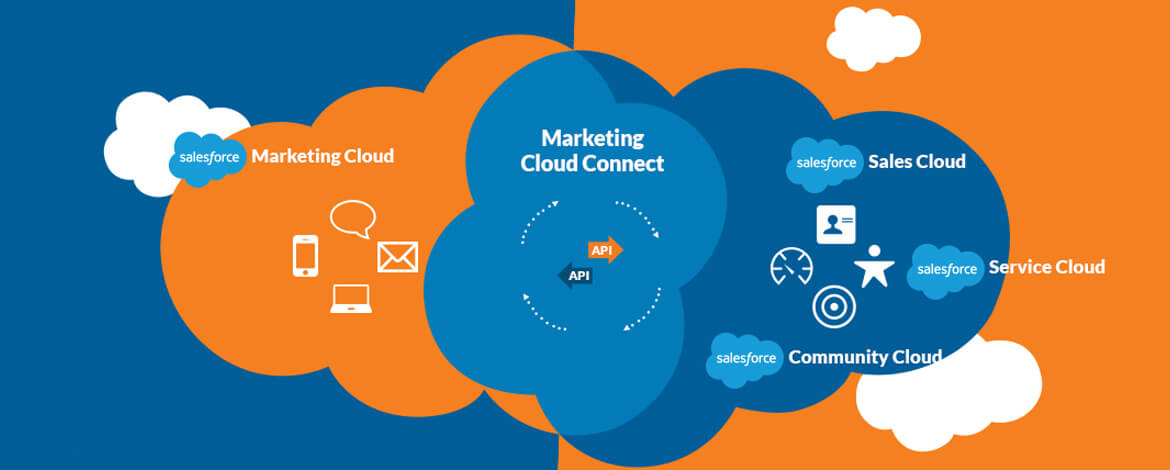
This is a memo that I created for Japanese juniors that just started using SFMC.
English Version:
What is an Automation?

An application in Marketing Cloud used to execute multi-step marketing and data management activities based on an immediate action, a trigger, or a schedule.
Simply put, an automation is exactly what it sounds like:
it automatically runs activities such as email sends, data extracts, segmentation, and more (called Activities).
From an operator’s point of view, you place activities (instructions for each task) and build an automation (a flow where multiple tasks are lined up in execution order).

💡 An automation is made up of many activities, and there are many different types of activities you can place inside an automation.
I know I’m repeating myself, but it’s actually very important to really lock in this concept—so I’m intentionally emphasizing it.
Key Concepts to Understand When Using Automation Studio
Understand the difference between Automations and Activities
For some people, this part can take time to fully understand.
Be careful: editing activities in production with a vague understanding can lead to serious incidents.
First, a basic rule:
For a single activity, there can be one or more automations that use it.
For example, let’s say Person S creates an SQL Query Activity called:
“Extract only members who have opted in to the newsletter into a Data Extension”
and places it into Automation A to run a newsletter campaign.
Now, Automation B also needs to run a different newsletter scenario,
so Person S wants to use the same SQL Query Activity in Automation B as well.
In this case, you can place the same query activity created for Automation A
into Automation B as-is.
Nice—less work!
However, from an operational perspective, depending on how your organization is structured, I personally do not recommend reusing the same activity across multiple automations.
If you want to manage a large number of automations, it’s better to create an operational plan before designing everything.
In most cases, this happens:
“Wait… is this activity still being used in some other automation too…?” (Yes, speaking from experience.)
Of course, copying activities for each automation also has downsides.
For example, if something changes in a Data Extension and the activity needs to be updated, your scope of changes becomes much larger.
That’s why it’s important to keep a list of frequently used DEs so you can perform an impact analysis before starting modifications.
- DE Name
- Activity 1
- Activity 2
- …
Understand the difference between the tabs
Automation Studio has two tabs: “Overview” and “Activities.”

In the Overview tab, you can see the automation library.
In the Activities tab, you can see the activity library.
💡 When should you use which?
- You want to change what’s inside the automation (the activities)
⇒ Go to the Activities tab- You want to change the automation settings
⇒ Go to the Overview tab
Understand what “Automation settings” mean
The image below shows the automation editing screen.
Definitions may vary by company, but typically automation settings include:
- Automation name
- Automation folder/directory
- Start source
- Error notification settings
- Placement of activities
Understand what “Activity settings” mean
There are multiple types of activities.
(Each orange box below represents an activity, e.g., sending an email.)
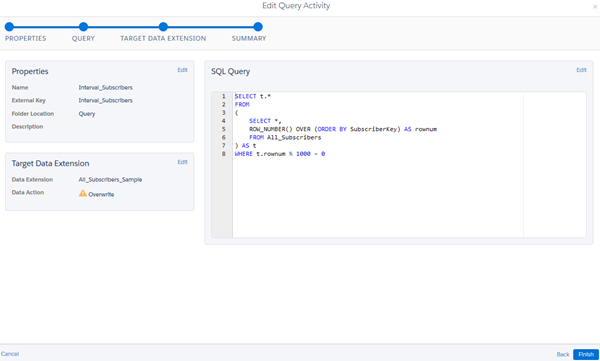
The image below shows an example of an activity settings screen (SQL Query Activity).
Definitions may vary by company, but typically activity settings include:
- Activity name
- Activity folder/directory
- SQL query
- Changing the target Data Extension (DE)
Final Notes: Important Things to Remember When Using Automation Studio
Here’s a summary of the minimum things you must understand.
If even one item makes you think “Huh? What are they talking about?”, please re-read this page before touching the production environment. Better safe than sorry.
- Even if you duplicate an automation, the activities inside it are not automatically duplicated
- If you edit an activity directly from the automation, you might end up editing the production activity too. Please don’t do this.
- Deleting activities from the Activities tab is also a no-go. It might be used in other automations. Always check the impact first.
- If you rename a Data Extension, make sure to update settings in SQL activities and similar configurations as well
- If it’s just used as a target DE (write destination), renaming may not cause issues—but inside a query, it’s referenced by name, so be careful.
Japanese Version (Original):
オートメーションとは
即時、トリガー、またはスケジュールによって複数ステップのマーケティングおよびデータ管理アクティビティを実行するために使用される、Marketing Cloudのアプリケーション。
簡単にいうとオートメーションは名前の通り、
メール送信、データ抽出、セグメンテーションなどの処理( アクティビティ )を自動実行するものです。
作業者の視点で説明すると、アクティビティ(処理の指示内容)を配置して、オートメーション(複数処理が実行順に並んだフロー)を構成します。
💡 オートメーションはたくさんのアクティビティからできていて、 オートメーションに配置できるアクティビティにはいろんな種類がある。
しつこいですが、このコンセプトを定着させることが結構重要なので、あえて繰り返しています。
Automation Studioを操作するにあたっての理解ポイント
オートメーションとアクティビティを理解しよう!
人によっては、ここの理解に時間がかかったりする。
曖昧な理解で本番化されているアクティビティを編集されると事故につながるので、気をつけましょう!
まず前提。
アクティビティ1つに対し、そのアクティビティを配置しているオートメーションは、1つ以上存在することができる。
たとえば、S君が 「メルマガ許諾をしている会員だけをDEへ抽出する」SQLクエリアクティビティ を作成したとする。それをオートメーションAでメルマガ配信のため配置する。
オートメーションBで違うメルマガシナリオを配信したいので、 同じ内容のSQLクエリアクティビティをオートメーションBでも配置する必要がある。
この場合、オートメーションA用に作成したクエリアクティビティを、 そのままオートメーションBに置くことができるよ。 手間が省けてよかったね!!
ただ、運用を考えると組織の体系によっては「同じアクティビティをオートメーションを跨いで使う」ことは個人的にお勧めできません。
たくさんのオートメーションを管理したい場合、運用計画を立ててから設計すると良いでしょう。
だいたいの場合、 「え……このアクティビティ、まだどっかのオートメーションでも使ってたっけ……?」 となります(経験者)。
もちろん、オートメーション毎にアクティビティを複製して運用するデメリットもあります。
例えば、DEに何らかの修正がありアクティビティに改修が必要になった場合、改修範囲が大きくなってしまいます。
なので、よくクエリで使うDEは、改修着手前に影響調査ができるようリストアップしておく必要があるでしょう。
- DE名
- アクティビティ1
- アクティビティ2
- …
タブの違いを理解しよう!
Automation Studioには「概要」「アクティビティ」タブの2種類のタブがあります。
「概要」タブでは、オートメーションのライブラリがみれます。
「アクティビティ」タブでは、アクティビティのライブラリがみれます。
💡 使い分けはどうしたらいい?
1.オートメーションのアクティビティの中身を変更したい
⇒ アクティビティタブへ
2.オートメーションの設定を変更したい
⇒ 概要タブへ
オートメーションの設定とは何か理解しよう
下記画像がオートメーションの編集画面。 定義はそれぞれの企業で異なるかもだけど、基本的には以下が該当します。
- オートメーションの名前
- オートメーションのディレクトリ
- 開始ソース
- エラー通知設定
- アクティビティの配置
アクティビティの設定とは何か理解しよう
アクティビティには複数種類存在します。 ※オレンジ色の箱がアクティビティ(例:メール送信)です。
下記画像がアクティビティ設定の編集画面(例はSQLクエリアクティビティ)。 定義はそれぞれの企業で異なるかもだけど、基本的には以下が該当します。
- アクティビティの名前
- アクティビティのディレクトリ
- SQLクエリ
- 指定するDEの変更
最後に:Automation Studioを操作するにあたっての注意事項
最後に、最低限理解していてほしいことをサマリで列挙します。 1つでも、「は?何の話?」と思ったら、本番環境で操作する前にもう一度このページを読み返してください。失敗して事故を起こす前に…ね!
- オートメーションを複製したからといって、配置されているアクティビティも複製されるわけではない
- オートメーションから直接アクティビティを書き換えると、本番用のアクティビティも書き換わってしまう!やめてください。
- アクティビティタブのアクティビティ削除もNG。他のオートメーションで使っているかも……。影響調査をしましょう。
- データエクステンションの名前を変更したら、SQLアクティビティなどの設定も変更する
- 格納先として指定する場合は、名前が変わっても問題ありませんが、クエリ内だと名前で指定しているため、注意が必要です。